Published
YouTube uses 16:9 for standard video and 9:16 for Shorts. The recommended uploads are 1920 x 1080, or 3840 x 2160 for 4K, and 1080 x 1920 vertical. Any other shape still plays, because YouTube’s player adapts to the file and pads the difference. The harder question is the one behind it: how to shoot once and cut for eight surfaces.
The number that decides that is not on any spec sheet. A 1080p horizontal master cannot produce a 1080p vertical crop. The vertical slice out of a 1920 x 1080 frame is 608 pixels wide. A 4K master gives you 1215. That single arithmetic fact is the difference between one shoot and two.
How this was checked. YouTube’s figures below come from YouTube’s own Help pages — the recommended upload encoding settings page and the supported formats troubleshooter — retrieved in August 2026. Instagram, TikTok, Facebook, LinkedIn and X documentation is closed to automated retrieval, so those rows give ratios and the conventional 1080-wide export rather than pixel specifications quoted as official. Every crop figure in this article is arithmetic you can repeat with a calculator, and the working is shown.
The ratio each platform plays, and what it does to a file of the wrong shape
Four shapes cover every surface worth publishing to. Everything else is a variation.
| Surface | Native ratio | Conventional export | What a wrong-shaped file gets |
|---|---|---|---|
| YouTube, long-form | 16:9 | 1920 x 1080, or 3840 x 2160 | Player adapts and pads: bars at the sides for taller files, bars top and bottom for wider ones |
| YouTube Shorts | 9:16 vertical | 1080 x 1920, 1080p ceiling | Horizontal files are not treated as Shorts at all; they publish as ordinary videos |
| Instagram Reels, Stories | 9:16 | 1080 x 1920 | Anything shorter than full-height is padded or zoomed to fill |
| Instagram feed | 4:5 portrait, 1:1 square | 1080 x 1350, 1080 x 1080 | Taller than 4:5 is cropped to 4:5 bounds |
| TikTok | 9:16 | 1080 x 1920 | Horizontal plays letterboxed in a vertical player, at roughly a third of the screen |
| Facebook feed, Reels | 4:5 feed, 9:16 Reels | 1080 x 1350, 1080 x 1920 | Force-cropped or letterboxed depending on surface |
| LinkedIn feed | 16:9 or 1:1, 9:16 supported | 1920 x 1080, 1080 x 1080 | Extreme ratios are cropped toward the accepted range |
| X | 16:9 or 1:1, 9:16 supported | 1920 x 1080, 1080 x 1080 | Taller files are cropped in-feed and open full in the viewer |
The pattern across the table is the useful part. Every vertical surface wants the same 9:16 shape, every feed surface wants something between 1:1 and 4:5, and only YouTube, LinkedIn and X genuinely reward 16:9. Three crops, not eight.
Why a 1080p master cannot produce a 1080p vertical crop
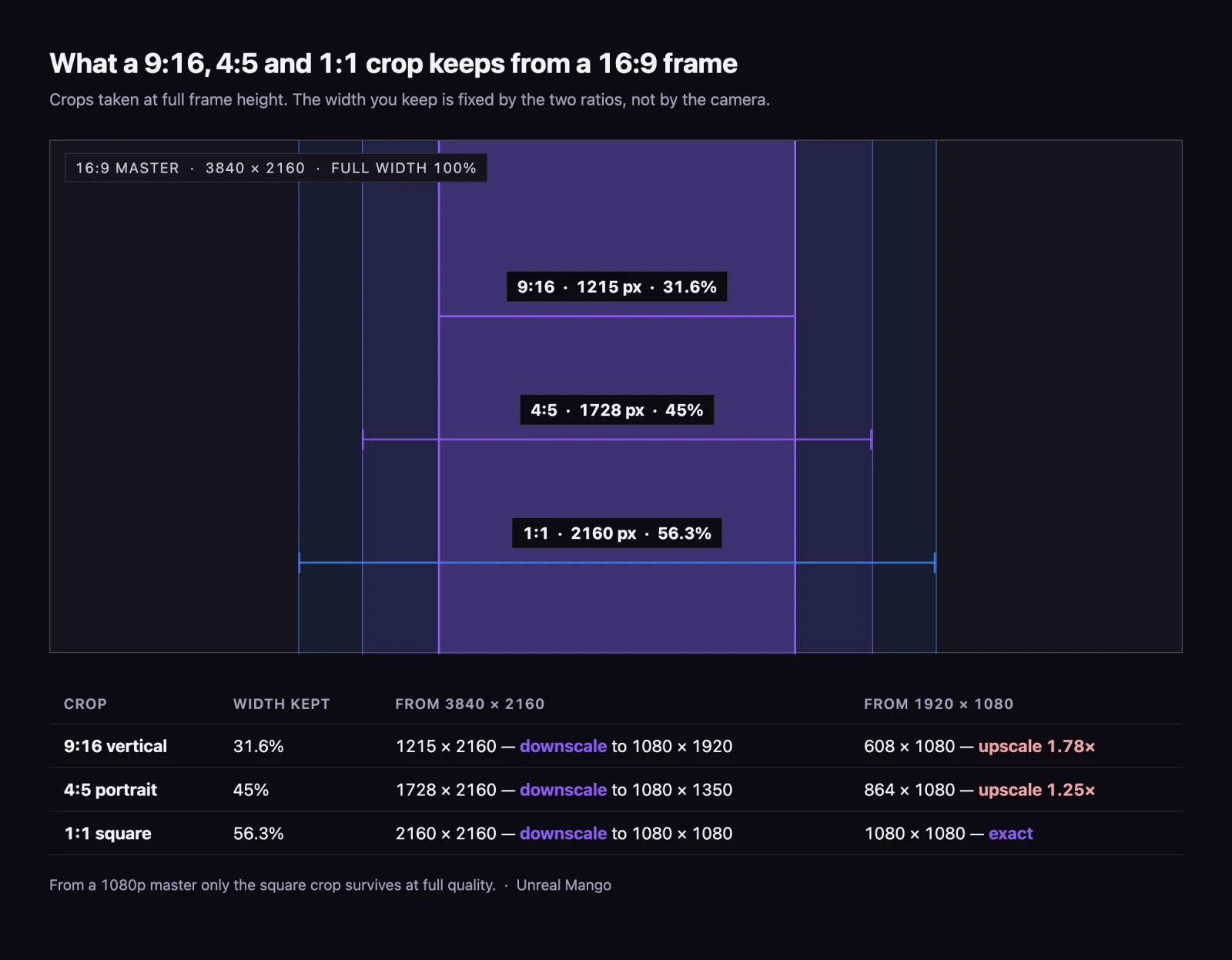
Cropping does not invent pixels. When you take a 9:16 slice out of a 16:9 frame at full height, the width you get is fixed by the two ratios: 9/16 divided by 16/9 is 81/256, or 31.6% of the original width. Everything follows from that fraction.
| Crop taken at full frame height | Width kept | From a 3840 x 2160 master | From a 1920 x 1080 master |
|---|---|---|---|
| 9:16 vertical | 31.6% | 1215 x 2160 — downscale to 1080 x 1920 | 608 x 1080 — upscale 1.78x to reach 1080 x 1920 |
| 4:5 portrait | 45% | 1728 x 2160 — downscale to 1080 x 1350 | 864 x 1080 — upscale 1.25x to reach 1080 x 1350 |
| 1:1 square | 56.3% | 2160 x 2160 — downscale to 1080 x 1080 | 1080 x 1080 — exact, no resampling |
Read the right-hand column and the case for shooting 4K stops being about future-proofing. From a 1080p master, only the square crop survives at full quality. The vertical crop, the one every short-form surface wants, arrives 1.78 times short and has to be interpolated up — which is exactly the soft, slightly plastic look that gives away a horizontal video re-cut for Reels.
The arithmetic itself is symmetric, and it is worth being precise about that because plenty of advice is not. A 16:9 slice out of a 1080 x 1920 vertical master is 1080 x 608 and needs exactly the same 1.78x upscale, keeping the same 31.6% of the frame. Shoot a 2160 x 3840 vertical master and the horizontal crop downscales cleanly, mirror image of the 4K horizontal case.
What is not symmetric is everything around the arithmetic. 4K horizontal is the default recording mode on almost every camera, the shape monitors and edit timelines assume, and the only one YouTube long-form, LinkedIn and a website hero will take without penalty. So in practice the surviving crop runs horizontal-to-vertical, and the failure mode is a 1080p master of either orientation. If a project has to produce both and only one shoot is funded, shoot horizontal at 4K.
The protected column: composing a 16:9 frame that already contains its vertical cut
The arithmetic gives you the resolution. It does not give you the composition, and that is where re-cuts actually fail. A 9:16 crop keeps about a third of the frame width, so anything you place outside that central third is not in the vertical version — however many pixels the camera recorded.
The working method is to treat that third as a protected column and frame to it on the day:
- Mark the column before the first take. Most cameras and monitors will overlay a 9:16 guide on a 16:9 frame; if yours will not, tape marks on the monitor bezel work. The column is the middle 31.6% of the frame width.
- Every element that must survive sits inside it. Speaker’s face, the product, the on-screen text, the thing being demonstrated. What lives outside the column is context: set, depth, headroom, the parts a wide shot exists for.
- Compose off-centre in 16:9 only when you are willing to lose it. A subject placed on a third-line looks correct wide and sits half-outside the vertical crop. That is a legitimate choice for material that will only ever run wide, and a defect for anything destined for Shorts.
- Leave headroom the vertical crop can spend. The vertical frame is taller relative to its width, so a wide shot framed tight at the top produces a vertical crop with the subject jammed against the edge.
- Keep camera movement inside the column. A pan that ends with the subject at the frame edge is fine wide and unusable vertically, because the crop cannot follow without keyframed reframing that costs edit hours.
Rules four and five are where the extra planning time actually goes. Both are decisions about where the camera points, which means they belong to the shot list — the same document that carries the coverage you plan to shoot — and not to the edit, where the only remaining option is to reframe shot by shot.
Interface overlays reserve a band at each end of a vertical frame
A vertical video is never seen whole. The platform draws its own interface on top: account name and controls along the top, caption, audio strip, action buttons and the like-comment-share rail along the bottom and right. Anything you place under those is legible in your editor and covered on a phone.
Each platform has its own exact reserve, and those numbers belong in the per-platform specification. What you need on a shoot is one envelope conservative enough to satisfy all of them, carried as a share of the frame so it applies unchanged to a 4K master, a 1080p crop and every export in between:
- Top: keep the first 12–14% of the frame height clear. On a 1080 x 1920 export that is roughly the top 250 pixels.
- Bottom: keep the last 30–35% clear. This is the band that surprises people. Captions and the action rail take far more room than the top overlay, and it is the single most common reason a title card reads perfectly in the timeline and sits behind a caption on the phone.
- Right edge: keep the last 8–10% of the width clear for the vertical button rail.
- What is left is a working area of roughly 55% of the frame height, centred slightly high.
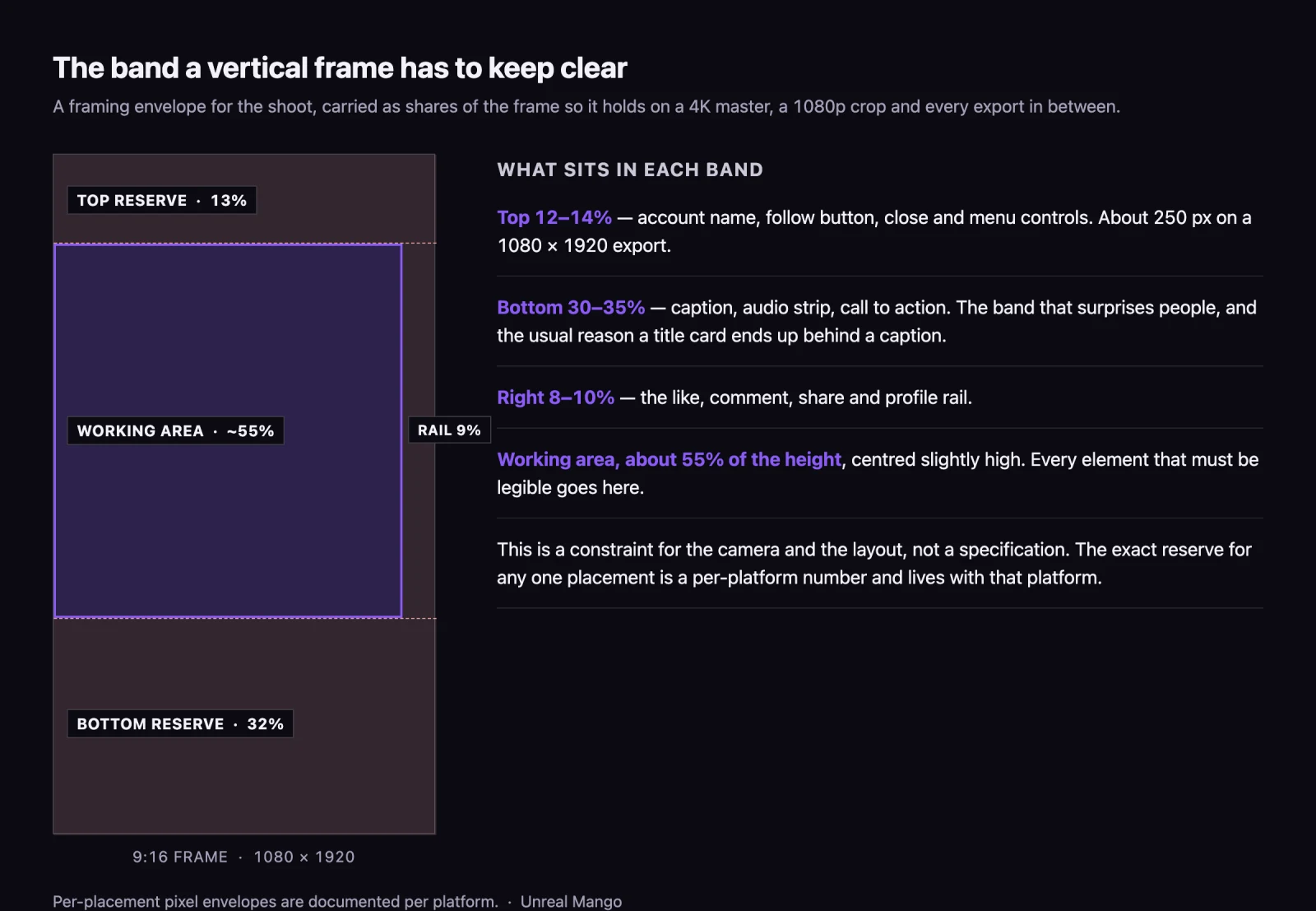
This envelope is a framing constraint, not a specification. It tells the camera operator where the subject has to sit and the designer where a title cannot go, and it holds across every vertical surface at once. When you get to the export and need the exact reserve for one placement — Meta’s pixel envelopes for Facebook and Instagram ads, Instagram Story dimensions on their own, TikTok’s coordinates, LinkedIn’s — those are per-platform numbers and they are documented per platform; the Facebook ad sizes breakdown sets out Meta’s, along with why published figures for them disagree.
What 4:3 and 2.39:1 actually cost inside a 16:9 player
Non-standard ratios are a style decision with a measurable price, and the price is screen area. The player adapts to the file, but the container it adapts inside is capped at 16:9 on a desktop page, so anything narrower or wider buys its shape with black: the difference is filled, not resized away.
| Uploaded ratio | Fits a 16:9 player how | Frame lost to bars |
|---|---|---|
| 4:3 (1.33:1) | Pillarboxed, occupies 75% of the width | 25% of the player width |
| 2:1 | Letterboxed, occupies 88.9% of the height | 11.1% of the player height |
| 2.39:1 cinemascope | Letterboxed, occupies 74.4% of the height | 25.6% of the player height |
| 9:16 vertical | Pillarboxed heavily on desktop | About 68% of the player width |
On desktop this is aesthetic. On a phone held upright it is not: the 16:9 player is already only a band across the screen, and a 2.39:1 image inside it loses another quarter of that band’s height. The cinematic ratio that reads as ambitious on a monitor reads as a letterbox slot on the device where most of the watch time is. It also crowds YouTube’s own end screens and card overlays, which are positioned against the player, not against your image.
4:3 has the opposite problem and a simpler answer. It is a deliberate archival or retro choice, and if it was not deliberate it is usually a camera preset nobody checked.
One thing not to do either way: never bake the bars into the file. YouTube’s own resolution guidance asks you to avoid adding padding or black bars to the video, because baked-in padding stops the player changing shape dynamically — and the result is a doubly-barred frame, your black inside YouTube’s black.
YouTube video file format: the upload spec, and where the accepted list misleads
Upload an MP4 containing H.264 video and AAC-LC audio at 48 kHz. That is the combination YouTube’s own encoding guidance names, and it is the answer to the question almost everyone is asking.
The accepted list is much longer and this is where guides go wrong. YouTube’s troubleshooter accepts MOV, MPEG-1, MPEG-2, MPEG4, MP4, MPG, AVI, WMV, MPEGPS, FLV, 3GPP, WebM, DNxHR, ProRes, CineForm and HEVC. Accepted is not recommended. Every upload is re-encoded on YouTube’s side regardless of what you send, so an exotic container buys nothing and adds processing failure modes.
Two details from the same guidance that almost no cheat sheet reprints:
- Fast Start. YouTube asks for the moov atom at the front of the file and no edit lists. Most editors have this as an export checkbox, often labelled “fast start” or “web optimised”. Getting it wrong does not reject the upload; it makes processing slower.
- Match the frame rate to the recording. Content should be encoded and uploaded at the frame rate it was recorded at — 24, 25, 30, 48, 50 or 60 fps — with interlaced material deinterlaced before upload. Converting 24 fps to 30 on export is a common and entirely avoidable source of judder.
YouTube’s recommended bitrates for standard dynamic range, in Mbps, at standard and high frame rate:
| Resolution | SDR, standard frame rate | SDR, high frame rate |
|---|---|---|
| 2160p (4K) | 35–45 | 53–68 |
| 1440p | 16 | 24 |
| 1080p | 8 | 12 |
| 720p | 5 | 7.5 |
| 480p | 2.5 | 4 |
| 360p | 1 | 1.5 |
Audio: 128 kbps mono, 384 kbps stereo, 512 kbps for 5.1. Colour space BT.709 for SDR. HDR bitrates run roughly a quarter higher at every rung — 44–56 Mbps at 2160p, 10 at 1080p.
Exporting well above these figures is not an error, it just does not reach the viewer. The upload is transcoded to YouTube’s own ladder either way, so the extra gigabytes buy a longer upload and nothing else. The number that does change what the viewer sees is the resolution you shot at, which is where the crop table earlier in this article does its work.
Shorts qualify on duration and orientation, not on a ratio you select
There is no Shorts switch. YouTube’s own description of the requirement is a vertical video up to 3 minutes long, uploaded at a maximum resolution of 1080p. Meet those and the upload is treated as a Short; miss them and the same file publishes as an ordinary video.
Three consequences worth planning around. A vertical cut that runs three minutes and one second is not a Short, so the edit has a hard ceiling rather than a target. Uploading a 4K vertical export gains nothing, because the Shorts ceiling is 1080p — the 4K matters in the master you cut from, not the file you upload. And a horizontal clip cannot be made into a Short by tagging it; the shape is the qualification.
Deciding the ratio before the camera moves, in three questions
Most of the cost in this whole subject comes from deciding the ratio after the material exists. Three questions, answered before the shoot, remove nearly all of it:
- Which surface has to look best, not merely acceptable? One surface gets native framing; the rest get crops. Choosing that surface is a marketing decision, and it should be made by whoever owns the campaign, not by whoever opens the timeline.
- Does anything have to run wide? A single wide requirement — a website hero, a trade show loop, a YouTube long-form cut — sets the master to 16:9 at 4K and makes every vertical crop free. No wide requirement at all, and shooting native 9:16 gives a better vertical frame than any crop can.
- Is there on-screen text? Titles, lower thirds and captions are the elements most likely to sit outside the protected column or under the interface band. Text laid over the picture has to be positioned per ratio, which is why it is usually cheaper to build it as a separate motion graphics layer that gets repositioned per crop than to burn it into the master.
Answering these before the shoot converts a set of re-exports into a single framing rule. Answering them after means reframing shot by shot, and that is edit time paid at edit rates. It is the same discipline that makes a script written to a shot list cheaper to shoot than a script written to a word count, and the same reason choosing between 2D and 3D early changes the budget more than any decision made later.
Where the framing rule has to survive contact with a real production schedule, that is what a crew that plans the crops before the call sheet is for. Our video production team sets the master format and the protected column at the brief stage, so the vertical version is a crop rather than a second shoot.
09 / Reader questions
Frequently asked questions
01What is the aspect ratio of a YouTube video?
16:9 for standard long-form video and 9:16 for Shorts. YouTube's recommended upload is 1920 x 1080 at 16:9, or 3840 x 2160 for 4K, and 1080 x 1920 vertical for Shorts. Anything else still uploads and still plays: YouTube's help pages state the player automatically adapts to the size of the video, adding padding where the shape does not match.
02Is 1920x1080 a 16:9 ratio?
Yes. 1920 divided by 1080 is 1.778, and 16 divided by 9 is also 1.778, so the two describe the same shape at different sizes. 1280 x 720, 2560 x 1440 and 3840 x 2160 are the same 16:9 shape again. Resolution is how many pixels, aspect ratio is what shape they form, and the two are separate settings in every editor.
03Can I use a 4:3 aspect ratio for YouTube?
Yes, and it will play, but the player fills the leftover width with black pillars. A 4:3 image inside a 16:9 player occupies 75% of the available width, so a quarter of the frame the viewer sees is bar. It is a deliberate stylistic choice for archival or retro material, not a default worth carrying by accident from an old camera preset.
04Is YouTube Shorts 9:16?
In practice yes, though YouTube's own requirement is written as orientation and duration rather than an exact ratio: a vertical video up to 3 minutes long, uploaded at a maximum resolution of 1080p, is treated as a Short. 1080 x 1920 is the conventional export because it fills a phone screen edge to edge with no padding.
05What is the best video file format for YouTube?
An MP4 container holding H.264 video and AAC-LC audio at 48 kHz. YouTube accepts around sixteen formats including MOV, AVI, WMV, WebM, ProRes and HEVC, but accepted and recommended are different lists. MP4 with H.264 is the one YouTube's own encoding guidance names, and it is the combination least likely to stall in processing.
06Do I need to shoot separate vertical and horizontal versions?
Not if the horizontal master is 4K. A 9:16 slice taken from the full height of a 3840 x 2160 frame is 1215 pixels wide, comfortably above the 1080 a vertical export needs. The same slice from a 1920 x 1080 master is 608 pixels wide and has to be upscaled by 1.78 times to reach 1080 x 1920, which is where the visible softness in re-cut vertical clips comes from.
07What aspect ratio should Instagram, TikTok and LinkedIn video be?
9:16 vertical for Instagram Reels, TikTok and Stories on either platform; 4:5 portrait for the Instagram and Facebook feeds, which is the tallest shape those feeds display; 16:9 or 1:1 for LinkedIn feed video, with 9:16 available for mobile-first cuts. One 4K 16:9 master framed with the vertical slice in mind yields all of them.